API Setup Guide
How to Set Up YouTube Data API v3
📋 Prerequisites
- Setting up on a smartphone is possible but using a computer is recommended
- You need a Google account
- You can perform about 50-100 searches per day for 50 results each (quota consumption varies by search parameters)
📹 Watch Video Guide
Detailed video guide on setting up YouTube Data API v3
With Screenshots
Access Google Cloud Console
Google Cloud Console and log in with your Google account.
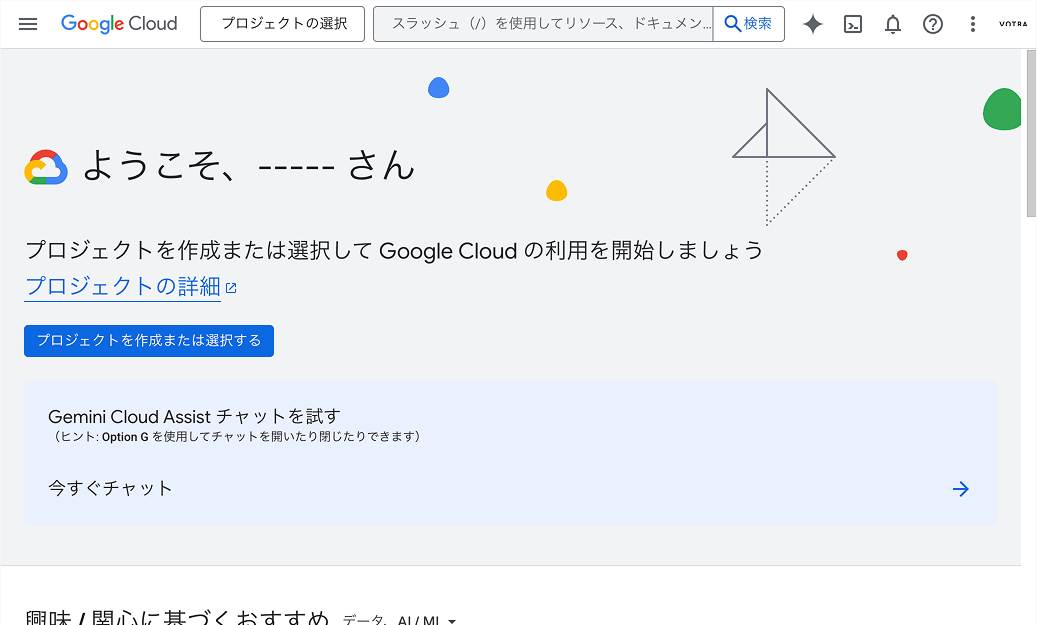
Google Cloud Console
📝 About 2-Step Verification
If you haven't set up 2-step verification, you may see an alert recommending it.
Currently, you can skip 2-step verification, but this may not be possible in the future.
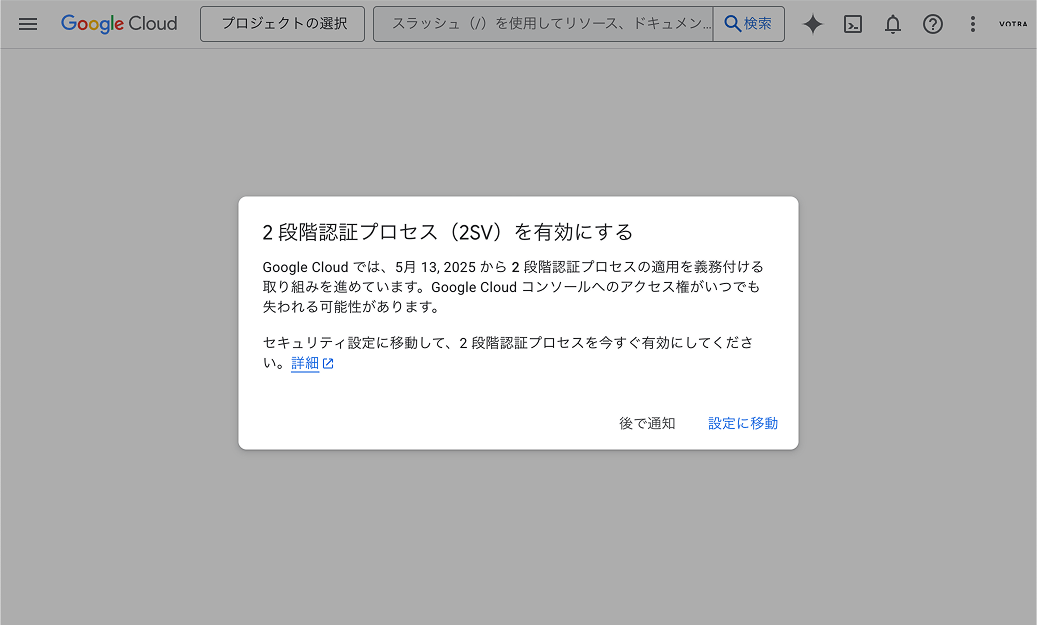
2-Step Verification Recommendation Screen
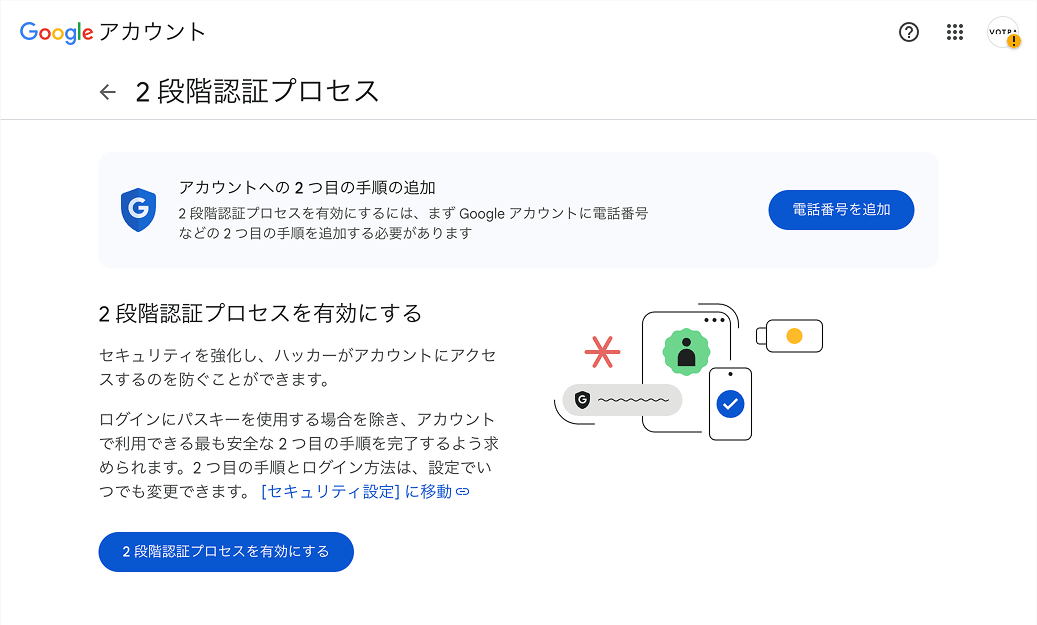
Enable via phone number
We recommend following the on-screen instructions to enable it via phone number verification.
For detailed setup instructions, please refer to this page.
Create or Select a Project
To create a new project:
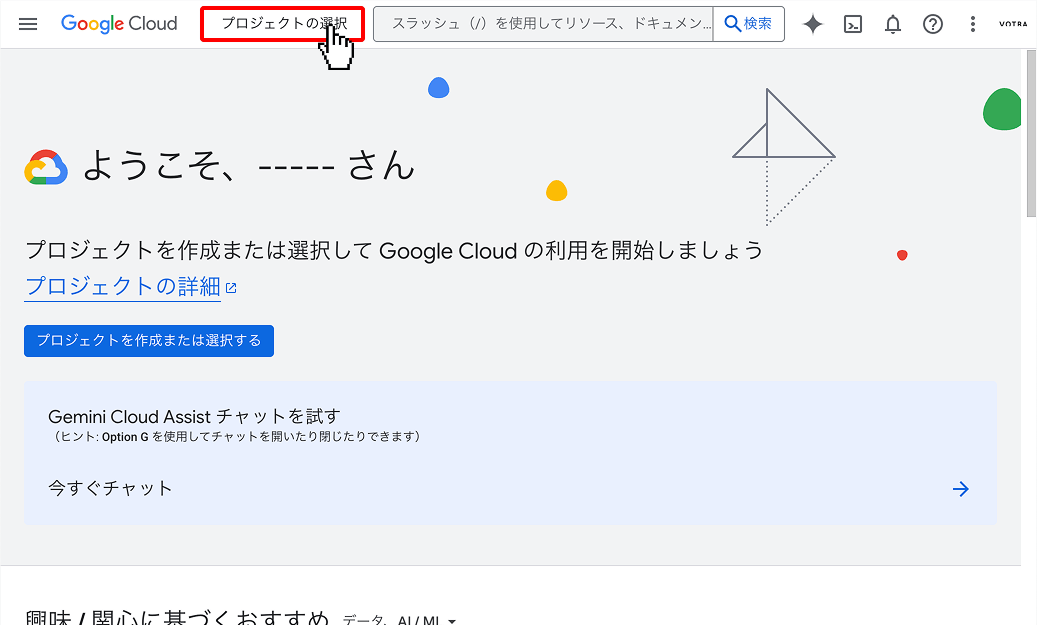
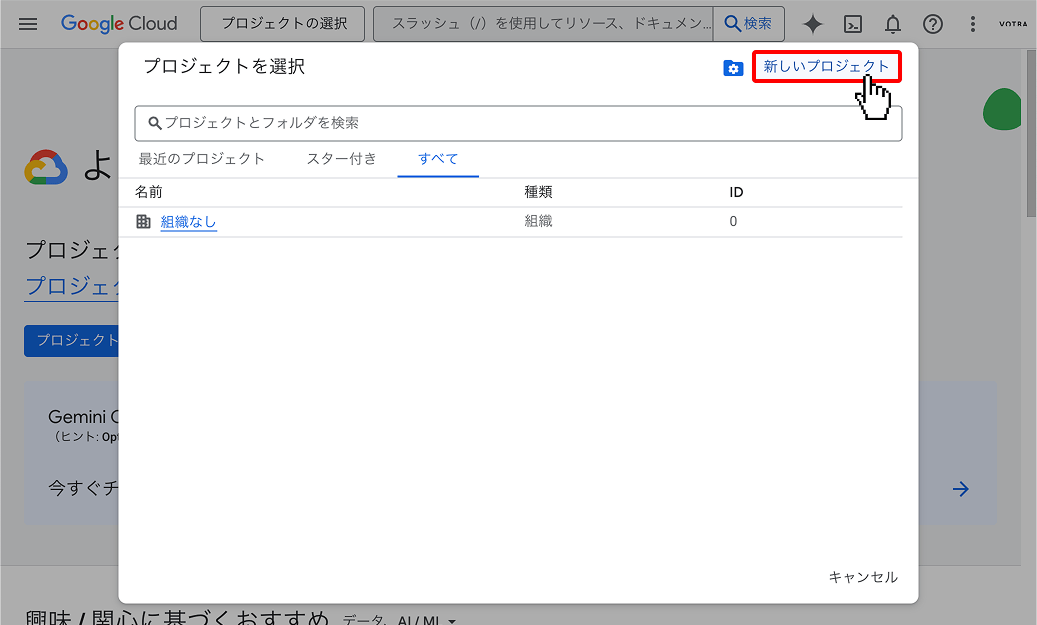
- Click 'Select a project' at the top of the screen
- Click 'New Project'
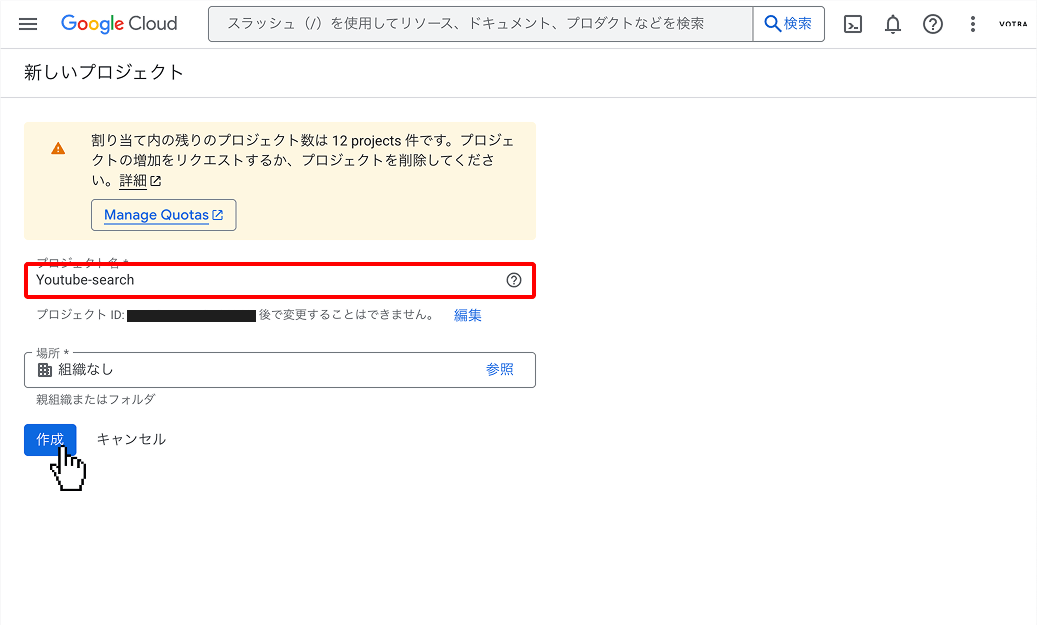
- Enter a project name (e.g., 'Youtube-search' - any name is OK)
1. After logging in, click 'Select a project'
2. Click 'New Project'
3. Enter project name and create
Enable YouTube Data API v3
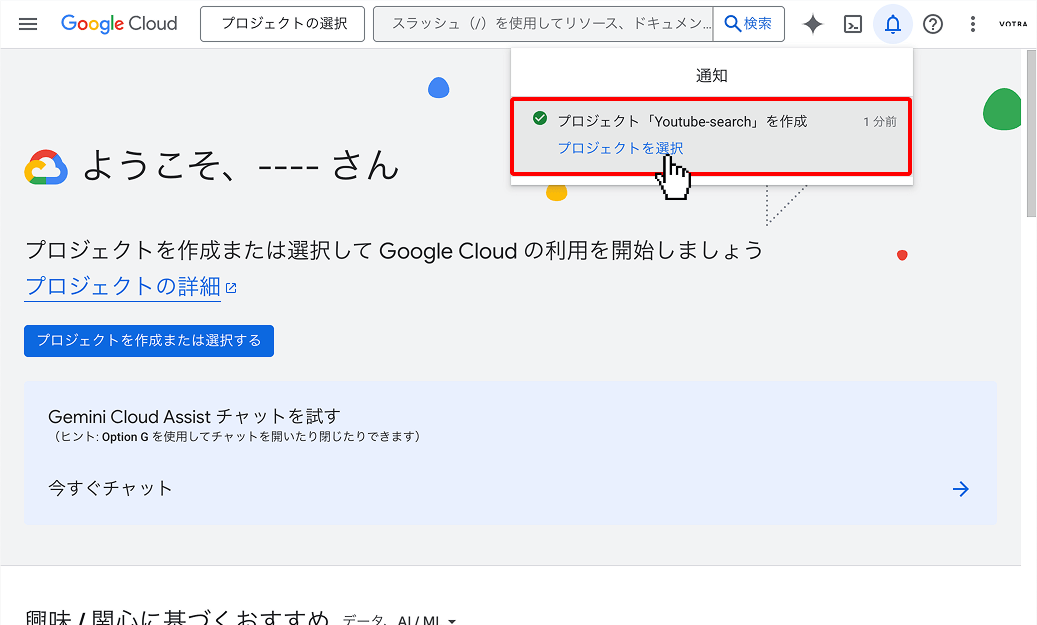
- Select the created project
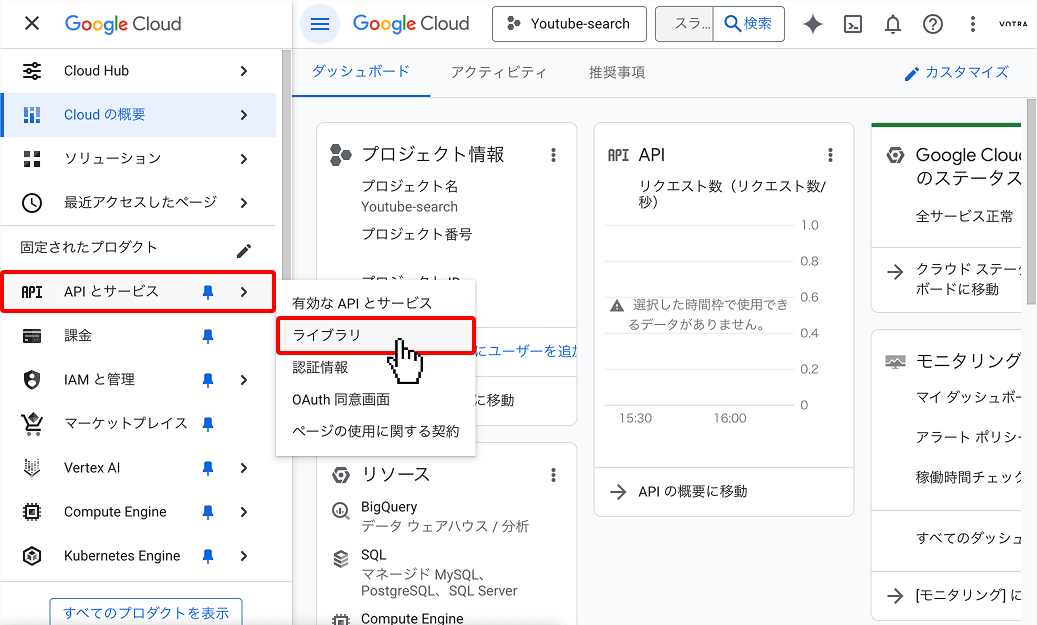
- From the left menu, select 'APIs & Services' → 'Library'
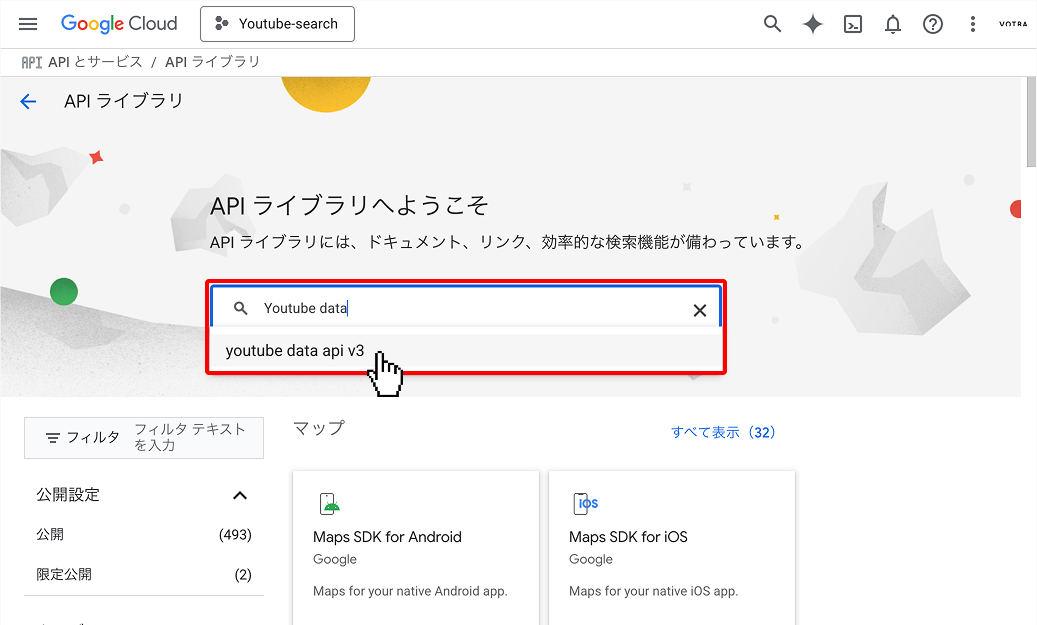
- Enter 'YouTube Data API v3' in the search box
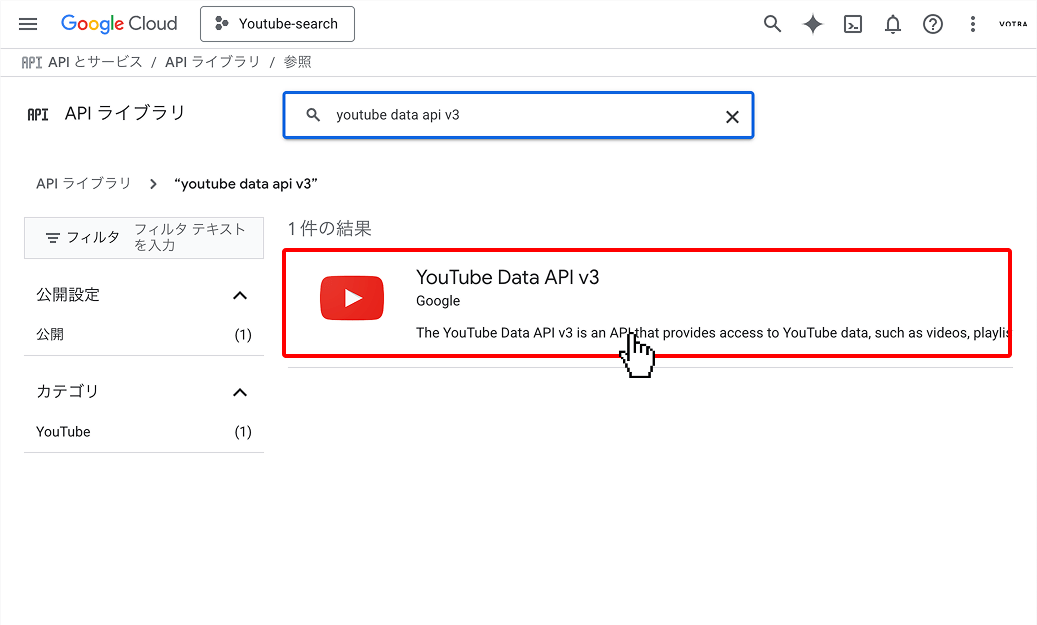
- Click 'YouTube Data API v3'
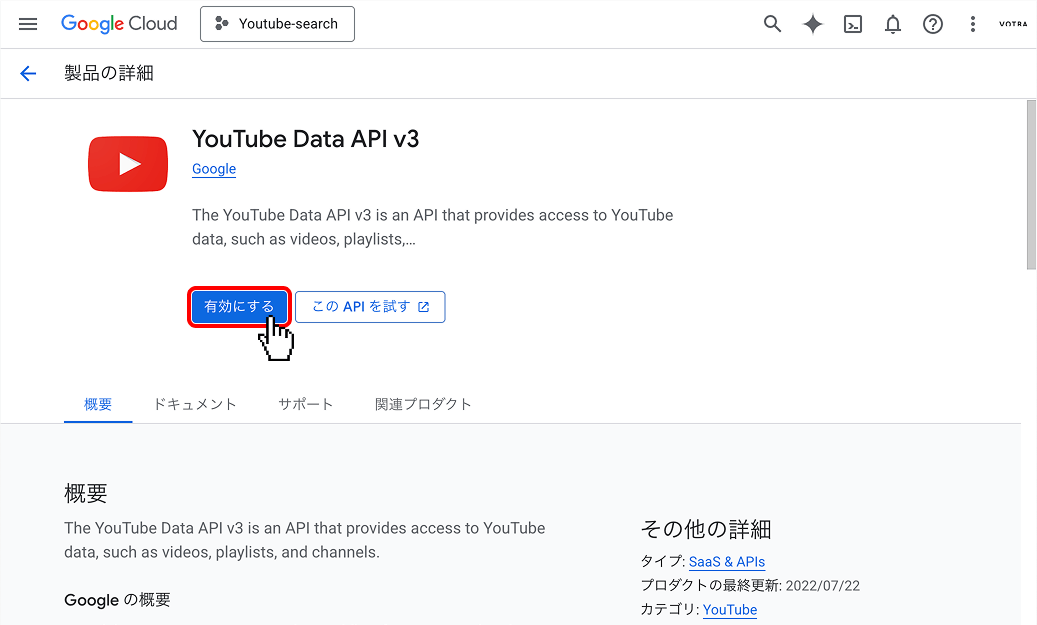
- Click the 'Enable' button
1. Select the created project
2. Select 'APIs & Services' → 'Library'
3. Search for YouTube Data API v3
4. Select YouTube Data API v3
5. Enable YouTube Data API v3
Create API Key
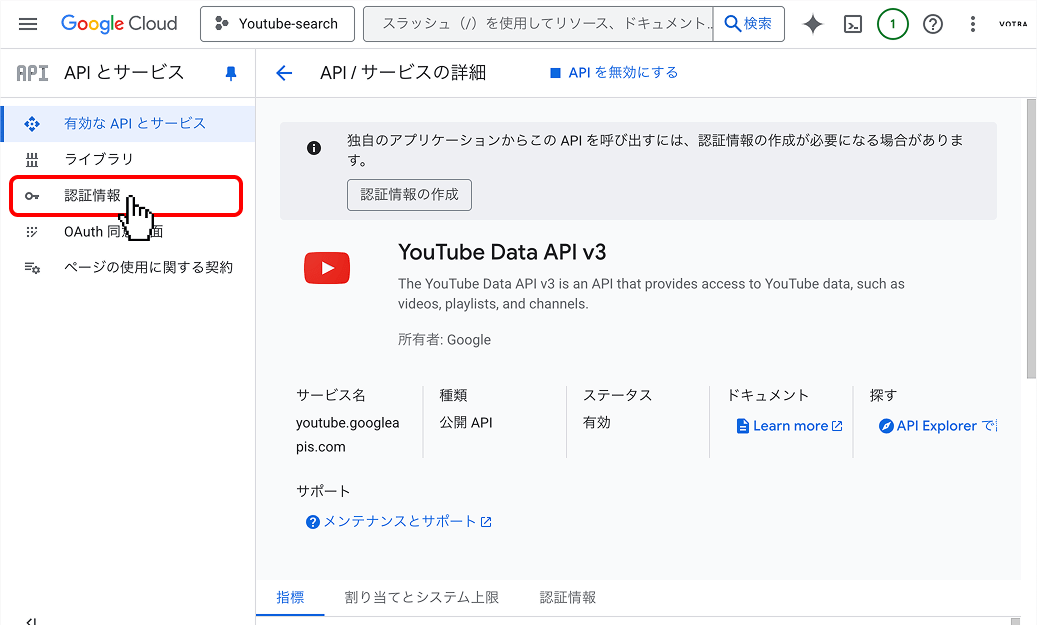
- Select 'Credentials' from the left menu
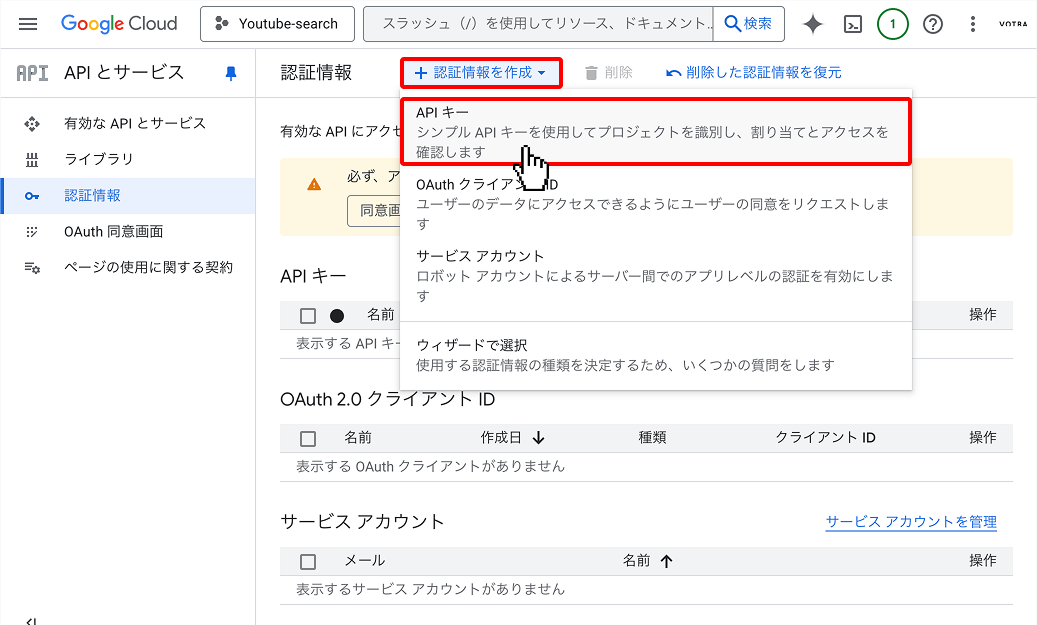
- Click 'Create Credentials' → 'API key'
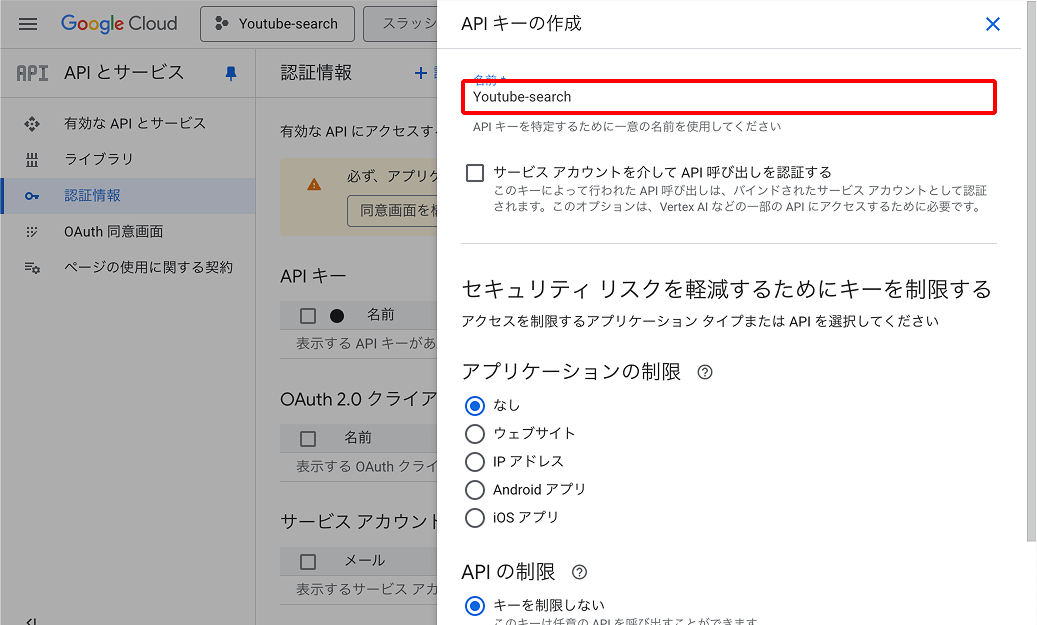
- Enter a name for the API key (e.g., 'Youtube-search' - any name is OK)
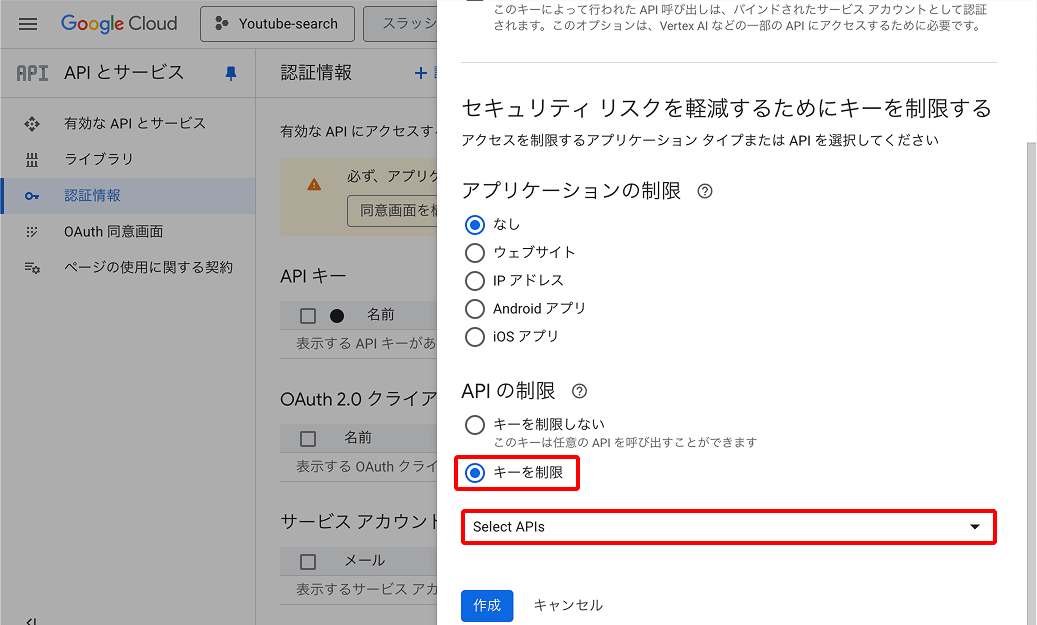
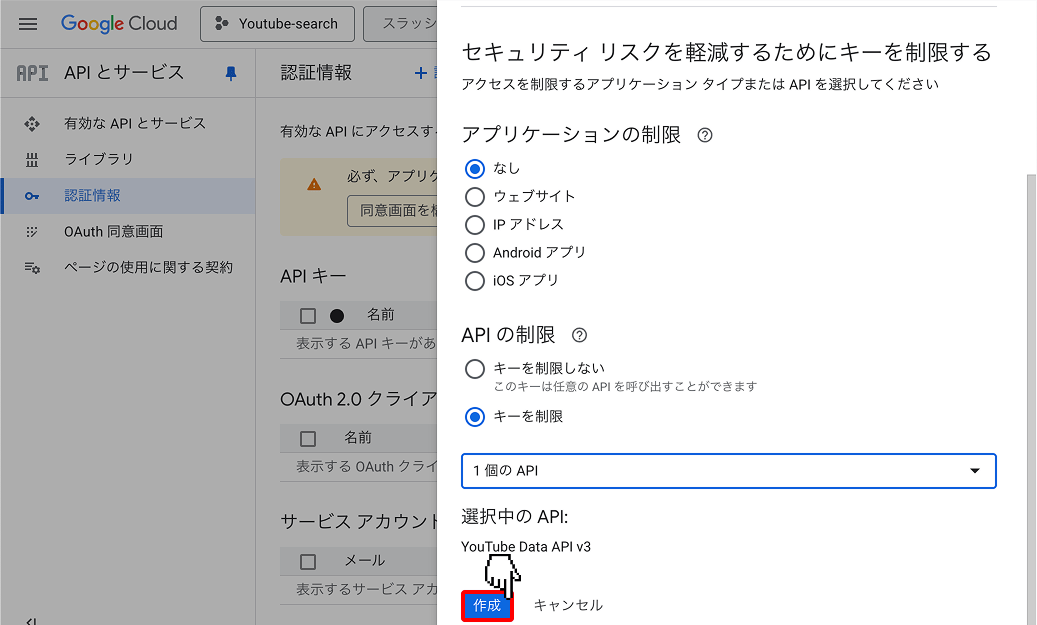
- Select 'Restrict key'
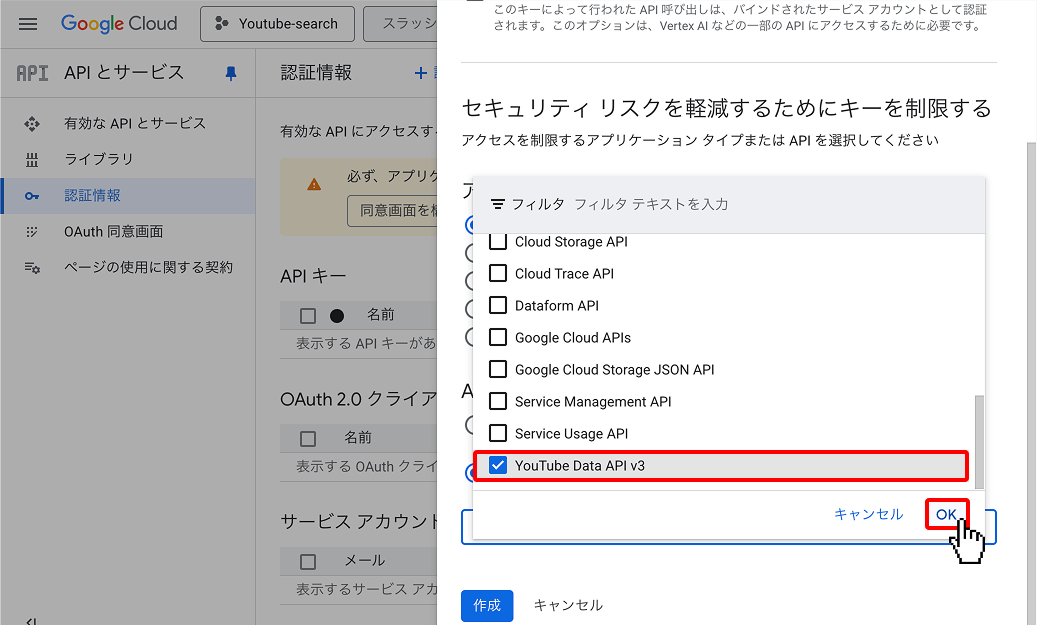
- In Select APIs, choose 'YouTube Data API v3'
- Click Create
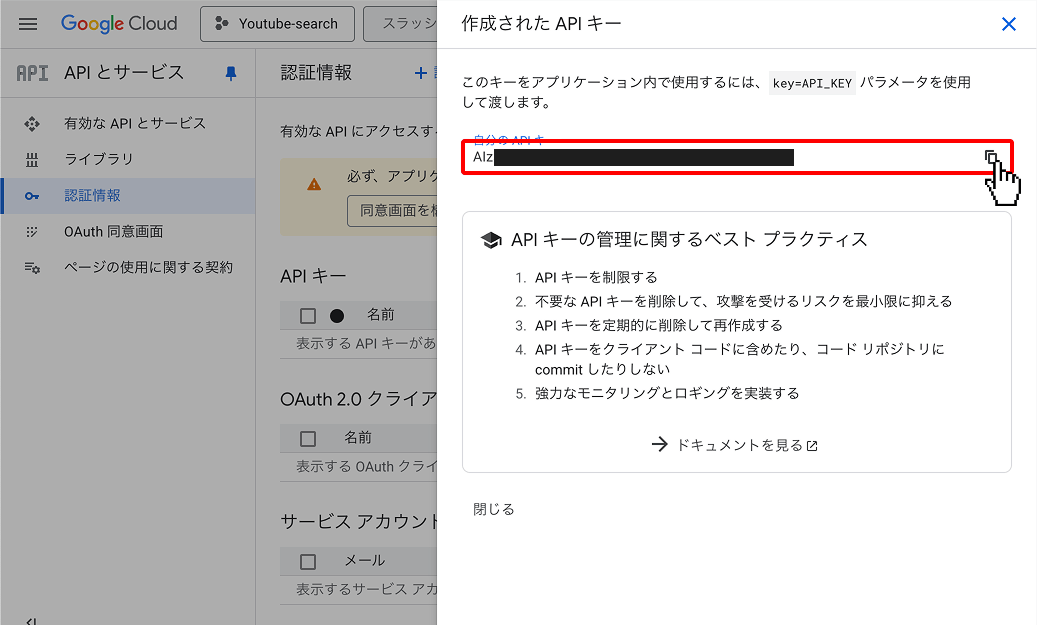
- Done: Copy the API key
1. Select 'Credentials' from the left menu
2. Click 'Create Credentials' → 'API key'
3. Enter API key name
4. Set API restriction to 'Restrict key'
5. Select YouTube Data API v3 in Select APIs
6. Click Create
7. Done: Copy the API key
Set API Key in This Application
Configure the created API Key in this application:
- 「API Key Settings」Go to the '' page
- Enter the created API Key
- Click the 'Set API Key' button
⚠️ Important Notes
- Save the API Key by copying it to a text file on your computer. If reading fails, please reconfigure it on the 'API Settings' page.
- API Key is confidential information. Do not share it with others.
- Do not commit it to public repositories like GitHub.
- We recommend rotating your API Key periodically.
- If you detect suspicious activity, disable the API Key immediately.
💡 About Usage
- YouTube Data API v3 offers 10,000 free quota per day
- About 20-700 quota consumed per 50 results
- About 20-500 searches possible per day (varies by search parameters)
- Quota resets at midnight Pacific Time